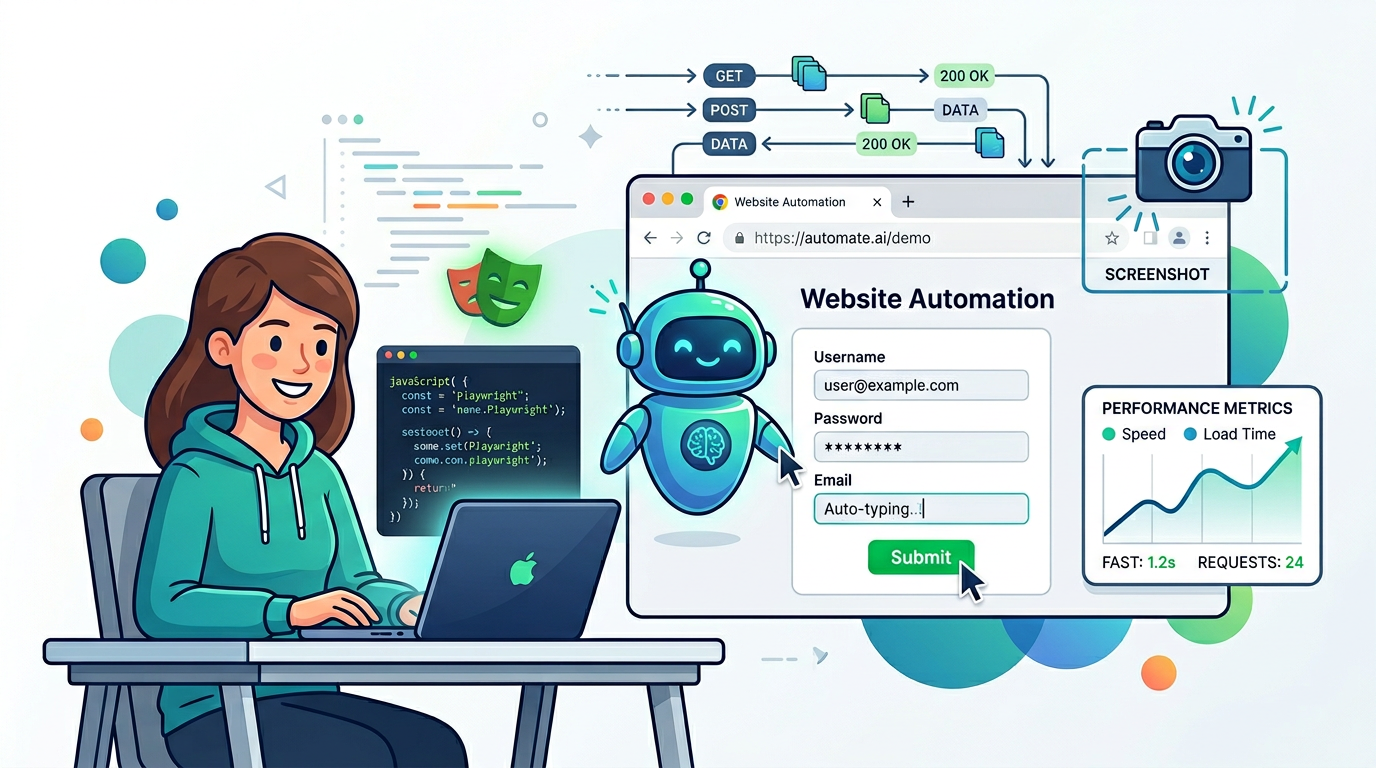
Browser Automation with AI: Test, Scrape, and Debug Web Apps from a Chat
Browser automation is how you test web apps end-to-end, scrape structured data from public sites, debug production issues by replaying user journeys, and automate repetitive form-filling workflows. Navigate to any page, read its content, click buttons, fill forms, take screenshots, inspect network traffic, run JavaScript, check console errors — all programmatically through natural language.
Playwright is the industry standard for browser automation: fast, reliable, cross-browser (Chrome, Firefox, WebKit), built for modern web apps. The MCPBundles browser bundles expose Playwright as MCP tools you can call from any AI agent, with two deployment modes: Local Browser (Chrome on your machine via the desktop proxy) and Remote Browser (cloud-hosted Chrome with no local install). This guide is the use-case version of "AI + Browser": what you ask, what the agent does, what comes back.
Test localhost apps without leaving the chat
You ask: "Open http://localhost:3000 in a local browser. Fill the login form with test@example.com / password123, click 'Sign In', and tell me if the dashboard loads."
Your AI does: Starts a Local Browser session (Chrome on your machine via the desktop proxy you're already running). Navigates to http://localhost:3000. Reads the page's accessibility tree (the structured snapshot Playwright uses for automation). Finds the email and password input fields by their accessible labels, fills them with the credentials you provided. Finds the "Sign In" button, clicks it. Waits for navigation to complete, reads the new page's title and URL. Checks if the URL changed to /dashboard and if the page title matches "Dashboard" or similar. Returns: "Dashboard loaded successfully at http://localhost:3000/dashboard" with a screenshot as proof.
Follow-up: "Take a screenshot of the left sidebar" — your AI finds the sidebar element and captures just that region.
The Local Browser sees exactly what you'd see in Chrome on your machine — your cookies, your logins, your localhost:3000. You can watch the automation happen in real time.
Scrape structured data from public pages
You ask: "Go to example.com/products. For each product card, scrape the title, price, and image URL. Return a CSV."
Your AI does: Navigates to example.com/products (using the Remote Browser — cloud-hosted Chrome, no local install). Reads the page's accessibility tree and HTML structure. Identifies the repeating product card elements (by CSS selector, accessibility role, or landmark). For each card, extracts the text content of the title element, the price element, and the src attribute of the image. Formats the data as a CSV: title,price,image_url\n"Product A","$29.99","https://..."\n... Returns the CSV text, ready to paste into a spreadsheet or write to a file.
Follow-up: "Now scrape the detail page for the first product" — your AI clicks the first product card, waits for the detail page to load, and extracts additional fields (description, stock status, reviews).
The Remote Browser is a cloud-hosted Chrome instance. No Playwright install on your machine, no Chrome to manage, no headless config. The AI gets a fresh browser session in the cloud.
Debug production issues by replaying user journeys
You ask: "Go to app.example.com, click 'Pricing', scroll to the 'Enterprise' plan, and check if the 'Contact Sales' button is visible."
Your AI does: Navigates to app.example.com in the Remote Browser. Finds the "Pricing" link (by text, accessible name, or href), clicks it. Waits for the page to load and render. Finds the "Enterprise" plan section (by heading text or landmark), scrolls it into view. Checks if the "Contact Sales" button exists in the viewport and is not hidden by CSS. Returns: "The button is visible" or "The button is not rendered / is hidden" with a full-page screenshot showing the viewport.
Follow-up: "Take a screenshot and highlight the button in red" — your AI captures the page and draws a bounding box around the element (if the Playwright API supports it, or by injecting a JavaScript overlay).
Useful for QA after deploys: "Go through the checkout flow on staging.example.com and tell me if any console errors appear" — your AI reads console.error logs and reports them.
Automate repetitive form workflows
You ask: "Fill out the contact form at example.com/contact. Name: John Doe, Email: john@example.com, Message: 'Interested in enterprise pricing'. Submit it and confirm the thank-you page loads."
Your AI does: Navigates to example.com/contact. Reads the form fields by their accessible labels ("Name", "Email", "Message"). Types the provided values into each field. Finds the submit button (by text "Submit", "Send", or role button), clicks it. Waits for navigation or a success message to appear. Checks if the page URL changed to /thank-you or if a success banner is visible. Returns: "Form submitted successfully, thank-you page loaded" with a screenshot.
The same pattern works for "Upload this CSV to the admin portal's bulk import form" — your AI finds the file input, uploads the file from your machine (Local Browser) or from a URL (Remote Browser), submits the form, and waits for confirmation.
Inspect network traffic and performance
You ask: "Load example.com/dashboard and tell me which API requests failed with 500 errors."
Your AI does: Starts a browser session with network monitoring enabled. Navigates to example.com/dashboard. Captures all HTTP requests and responses during the page load (via Chrome DevTools Protocol). Filters to requests with status_code >= 500. Returns a table: request URL, status code, response time, response body snippet.
Follow-up: "What's the total page load time and how many requests were made?" — your AI reads the performance metrics (DOM content loaded, full page load, total request count).
The same workflow applies to "Check if this page loads any third-party trackers" or "Show me all failed image requests" — your AI reads the network log and filters by domain, resource type, or status code.
Local vs Remote Browser — when to use which
Local Browser — Chrome on your machine
Best for:
- Testing
localhost:3000dev servers - Automating workflows where you're already logged in (your cookies persist)
- Visual QA on your own machine (you watch the automation in real time)
- Debugging local tools or internal apps
Setup:
pip install mcpbundles
mcpbundles login
mcpbundles proxy start
The proxy opens a Chrome window on your desktop. Your AI controls it through Playwright's Chrome DevTools Protocol (CDP). Localhost works natively — no tunnels needed.
Remote Browser — Chrome in the cloud
Best for:
- Scraping public pages (no local Chrome process)
- Testing production URLs without tying up your machine
- Running automations in CI/CD pipelines
- Quick one-off browser tasks when you don't have the proxy running
No install, no Chrome on your machine. The AI gets a fresh cloud session.
Accessing localhost from the cloud: If your AI needs the Remote Browser to reach localhost:3000, run mcpbundles proxy expose 3000 to create a secure tunnel. The cloud browser connects to your local dev server through the tunnel endpoint.
Console logs and JavaScript execution
Your AI can read console.log, console.error, and console.warn output:
You ask: "Load app.example.com and show me any console errors."
Your AI does: Navigates with console monitoring enabled. Reads all console messages tagged as error. Returns the error text, stack trace, and source file/line number.
Your AI can also inject and run JavaScript:
You ask: "Run document.querySelectorAll('img').length on this page and tell me the result."
Your AI does: Calls the JavaScript execution tool with the code snippet. Returns the result: "42 images on the page."
Useful for debugging dynamic apps where the accessibility tree doesn't surface everything.
Screenshots and visual assertions
Your AI can take full-page screenshots, viewport screenshots, or element-specific screenshots:
- "Take a screenshot of the entire page" → full-page scroll capture
- "Screenshot just the header" → crops to the
<header>element - "Show me what the login form looks like" → finds the form, captures it
Screenshots are base64-encoded and embedded in the response, or returned as URLs if the browser session is remote.
FAQ
Can my AI run tests in Firefox or Safari?
Not in the current bundle. Today it drives Chrome (Chromium) through Playwright; Firefox and WebKit support sits on the roadmap.
Can my AI handle authentication (login flows)?
For the Local Browser, an existing session usually carries the agent through — cookies persist, so if you're already logged in the agent inherits that login. For the Remote Browser, the agent fills the login form programmatically as part of the workflow, the same way a Playwright script would.
What happens if a page takes too long to load?
Playwright has built-in timeouts (default 30 seconds), so a slow page returns a timeout error rather than hanging. Override the window when you need it: "Navigate to slow-site.com and wait up to 60 seconds for it to load."
Can my AI click elements that aren't in the viewport?
Playwright scrolls elements into view automatically before clicking, so off-screen elements work without ceremony. The agent will also scroll explicitly when you ask — "Scroll down 500 pixels" or "Scroll to the footer".
Can my AI handle file uploads?
Local Browser sessions upload directly from your machine ("Upload /Users/me/data.csv to the import form"). Remote Browser sessions need a publicly accessible URL because the cloud Chrome instance can't read your local disk.
How do I watch what the Local Browser is doing?
The Local Browser opens a visible Chrome window on your machine, and every navigation, click, and form fill plays out in real time. That live view is useful for debugging an agent workflow or building new automations from scratch.