
Record a Screen Video of Any Website — From Your AI Agent
You can now ask Claude Code or Cursor to record a screen video of a website tour — open a page, scroll, move to the next page, scroll again — and hand you back an MP4. The whole thing runs in a cloud Chrome session. There is nothing to install: no browser on your machine, and no screen-capture app running in the background.
This started as a question — can we clip video from the remote browser instead of the local one? — and turned into a capability we think a lot of people will reach for: a demo/tour video of any live site, driven entirely from the agent you already work in.
What it does
The Remote Browser on MCPBundles is a hosted Chrome session your agent drives with Playwright-style commands: navigate, click, scroll, screenshot, fill forms. We added a small set of recording tools on top of it:
- Start recording — begin a screencast of the cloud browser viewport.
- Navigate and scroll — walk through as many pages as you want; everything on screen is captured.
- Stop / clip — end the capture and get a ready-to-use video asset.
- Export — pair it with Marketing Studio to render the capture as an MP4 or stills.
Because the browser runs in the cloud, the recording happens server-side. Your laptop fans never spin up, you do not hand over screen-recording permissions, and you do not need a second monitor to "keep the window in frame." The agent runs the tour; the cloud records it.
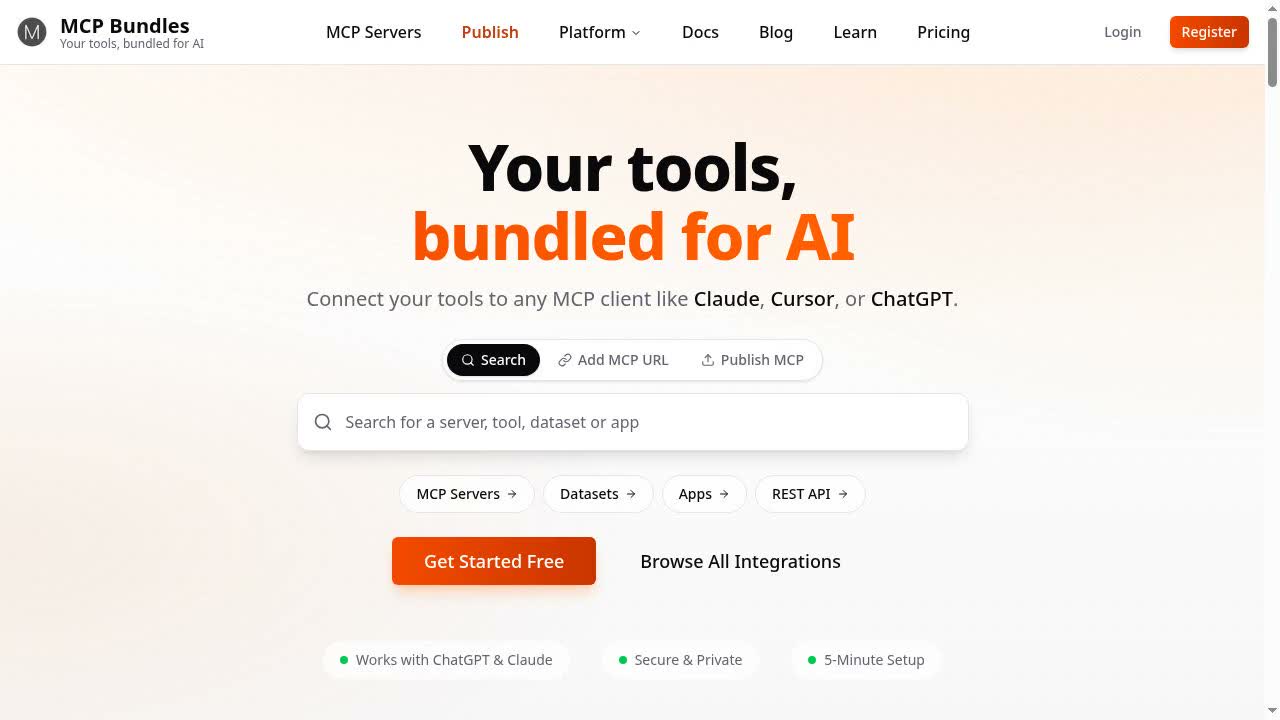
A real run
Here is the kind of prompt that produces the hero image above — a five-page tour of a live site:
Start a screen recording, then walk through the homepage, the skills page, the MCP Apps page, pricing, and the blog. Scroll each page top to bottom, then stop the recording and give me the video.
The agent opens the Remote Browser, starts the capture, drives the tour with real scrolling on every page, stops, and exports. The result is a continuous screen video of the site — the same thing you would get from a screen recorder pointed at a browser, except no browser or recorder ever touched your machine.
The part that was actually hard
Recording a single static page is easy. Recording a multi-page tour without the session dying halfway through is not.
A live screencast pushes a constant stream of frames over the browser's debug protocol. Our session layer used to run a quick "are you still alive?" health probe before each command — and under the load of an active screencast, that probe would occasionally time out, get read as a dead session, and tear the recording down mid-tour. The video would stop at page two.
The fix: when a capture is in flight, we skip the aggressive probe and use a lightweight connection check instead. The recording survives navigation, scrolling, and multi-page tours that run for tens of seconds. That hardening is why the tour above completes all five pages in one continuous take.
Who this is for
- Founders and indie hackers who need a quick product or onboarding video without learning a screen-recording app.
- Growth and marketing teams producing demo clips and ad creative — script the tour in plain language, get a clean capture.
- Developers and QA who want a recorded walkthrough of a flow (a release demo, a bug repro) without standing up Playwright plus a recorder locally.
It is not trying to replace a full video editor. It produces the raw capture — the tour itself — that you can trim, caption, or drop into Marketing Studio's device mockups.
Local vs. Remote — pick the right browser
MCPBundles runs two browsers, and recording works on both:
- Remote Browser runs Chrome in the cloud. Best when you want zero install and you are touring public sites. Localhost needs to be exposed through MCPBundles Desktop first, because the browser is not on your machine.
- Local Browser runs on your own Chrome through MCPBundles Desktop and reaches
localhostdirectly. Best when the thing you want to record is your dev server.
For "record me a tour of this public site," Remote Browser is the one-step path.
Try it
Connect the Remote Browser, then ask your agent to record a tour. Start here:
- mcpbundles.com/skills/remote-browser — connect the Remote Browser and run your first recording.
Tell it which pages to visit and what to scroll. It will hand you back the video.