Run a Multi-Step Website Workflow from Your AI Agent — No Chrome Install
TL;DR
- The Remote Browser gives your agent a hosted Chrome session — navigate, click, scroll, snapshot, and fill forms from Claude Code or Cursor without installing Playwright or opening a local browser.
- Remote Browser is already a top-twenty MCPBundles bundle — one of the connectors operators reach for most often in production.
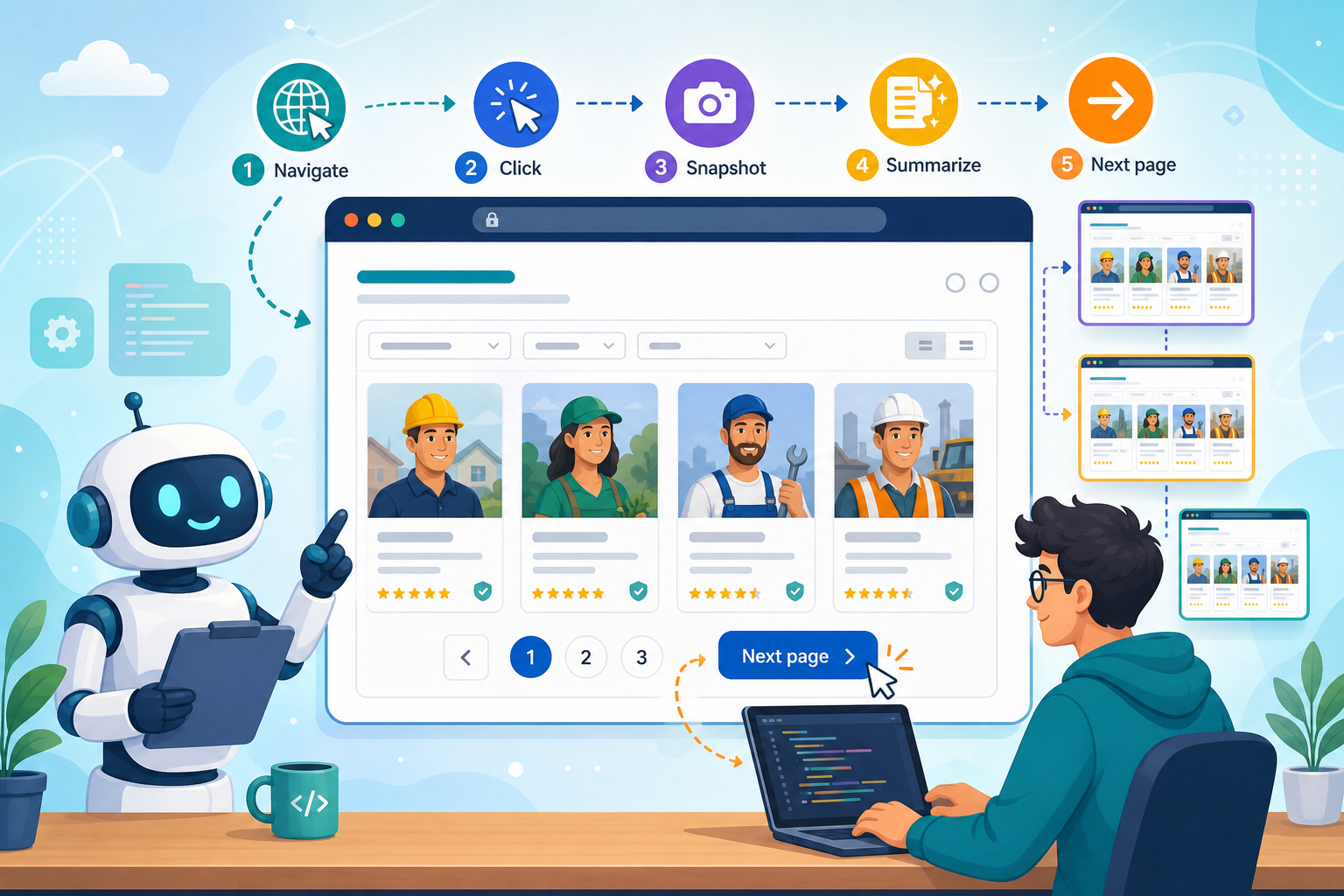
- A real paying customer ran 100+ browser steps on day one after finding us on the skills page: contractor directory, listing by listing, snapshot and summarize, next page. That's the workflow we hardened in July.
Someone signed up for Starter, connected Remote Browser from our skills page, and spent the afternoon doing serious work — not kicking tires. Before dinner they'd issued more than a hundred successful navigate-and-click commands through Claude Code: open a contractor directory, drill into a listing, snapshot the page, ask for a summary, move to the next result, keep going. No local Chrome. No Playwright install. Just chat driving a live cloud browser through a real research job.
That session is why we cared about multi-page reliability. Remote Browser isn't for a single hero screenshot — it's for afternoons like that: vendor comparisons, signup walkthroughs, paginated directories, deploy spot-checks, one session carrying the whole tour.
Connect once, describe the journey in plain language, and let the agent keep working in the same session while it moves through the site.
Research a vendor before you buy
Procurement and growth teams rarely need one page — they need pricing, feature lists, integration pages, and maybe a changelog. Copy-pasting between tabs loses context; exporting PDFs ages before anyone reads them.
Point the agent at a live site and ask for a structured brief. It can open the homepage, follow the pricing link, scroll the comparison table, hop to documentation, and return a short summary with screenshots where a claim needs proof.
"Open harbor-legal-demo.com, read the pricing page and the integrations page, and give me a comparison table: plan name, monthly price, and whether Salesforce is listed."
If the navigation label is vague, follow up in the same thread: "Now check their changelog for anything about API limits in the last ninety days."
Walk through a signup or demo flow
"Does the trial signup actually work?" is a common pre-sales question — and it's almost never answered by reading marketing copy on the homepage.
An agent can click Start trial, fill test details, advance through each screen, and snapshot what a prospect would see. You get a narrated walkthrough instead of a vague "looks fine."
"On app.northwind-demo.com, click Start free trial, use test@harbor-legal-demo.com for email, and screenshot every step until you reach the dashboard."
For flows that send a confirmation email, say so upfront: "Stop before payment — I only need to see whether the workspace setup screen loads."
Collect rows across paginated listings
Directories, marketplaces, and partner lists often spread across Next buttons. That's tedious in a spreadsheet and awkward in a one-shot scrape.
Keep the agent on the same browser session: open the listing, read each row, click through pages until you hit a limit you set, and return a CSV or table you can paste into Sheets.
"On contractors.harbor-city-demo.org, collect company name and profile URL from the first five pages of results."
When the layout is noisy, narrow the ask: "Only rows that mention 'plumbing' in the description."
Spot-check a live deploy
After a release, someone usually needs eyes on production — not a full test suite, just "did the pricing CTA survive?"
Ask the agent to hit the URLs you care about, scroll the fold where the button should sit, and report whether it's visible. A screenshot beats a Slack guess.
"Load staging.bright-smile-co-demo.com/pricing and tell me if the Enterprise Contact Sales button is visible above the fold."
Same pattern works for competitor checks after they ship: "Compare yesterday's screenshot if you have one — did their hero headline change?"
One session, many commands — what production looks like
Short tasks — grab one screenshot, read one page — are easy. The customers who stick run chains.
Remote Browser is one of our top-twenty bundles in production — the kind of connector teams keep enabled once they've tried it. The moment that got our attention wasn't a dashboard. It was a founder on day one, Claude Code open, working a contractor directory listing by listing until they'd cleared 100+ successful steps and still hadn't stopped.
Navigate, click, snapshot, summarize, next page — that's the loop. We hardened long tours in July so sessions survive it. Remote Browser keeps the work in one cloud session instead of restarting Chrome between every step. If you've lost a browser thread halfway through a directory or pricing walkthrough before, this is the fix — and it's what paying customers are already doing on MCPBundles. (For recording those tours as video, see our screen recording guide. For localhost dev servers, use Local Browser through MCPBundles Desktop instead.)
Remote vs local — pick the right browser
MCPBundles runs two browsers:
| Remote Browser | Local Browser | |
|---|---|---|
| Runs | Chrome in the cloud | Chrome on your machine via Desktop |
| Best for | Public sites, long multi-page chains, zero install | localhost, apps you're already logged into |
| Setup | Connect on MCPBundles — no Chrome install | MCPBundles Desktop + proxy |
Touring a public marketing site or vendor portal from Claude Code? Remote is the one-step path. Testing http://localhost:3000 on your dev machine? Local Browser reaches it directly; Remote needs Desktop to expose the port first.
Connect and try it
Connect Remote Browser on MCPBundles, enable the bundle in your workspace, and ask from Claude Code, Cursor, or whatever agent you already use.
Starter prompts that match how people actually work:
"Open bright-smile-co-demo.com, read pricing and features, and summarize the difference between Starter and Pro."
"On harbor-legal-demo.com/contact, fill the demo request form with test data and confirm the thank-you message appears."
"Screenshot the top of app.northwind-demo.com, click Product, then Integrations, and list every logo in the partner grid."
New to browser automation with agents? The broader Playwright MCP guide covers scrape, debug, and localhost patterns — this post is the multi-page, cloud-hosted slice of that story.