Cursor MCP: How to Add MCP Servers to Cursor (The Easy Way)
If you're using Cursor (and honestly, why wouldn't you be), you've probably heard about MCP. It's how you give Claude access to your databases, APIs, and tools right inside the editor.
Here's how to actually set it up.
One-Click Install (The Hotlink)
The fastest way to add an MCP server? Click a link.
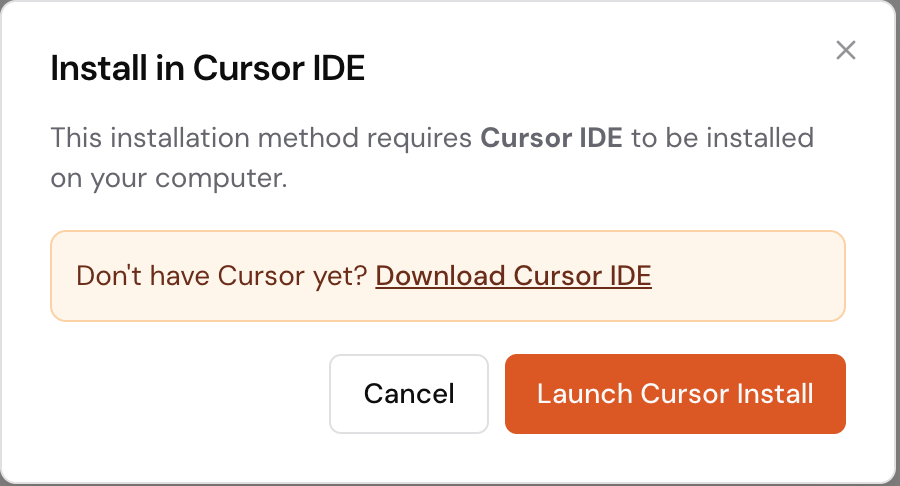
Seriously. When you click an MCP install link on a website, Cursor intercepts it and pops up this dialog:

Hit "Launch Cursor Install" and you'll see the server details:

That's it. Name, transport type, URL - all pre-filled. Click Install.
No JSON files. No terminal commands. No config editing.
OAuth Just Works
Here's what used to be painful: authentication.
Old way? Copy an API key, paste it into a config file, hope you got the format right, restart everything.
New way? Cursor shows you this:

Click Connect. Browser opens. You authorize. Done.
The credentials get stored securely and you never think about it again.
Manual Setup (If You Need It)
Sometimes you want more control. Maybe you're running a local server, or the one-click install isn't available.
From the UI: Go to Settings → Tools & MCP, then hit the edit icon to open the config file directly.
Important: Cursor supports MCP config at two levels:
- Cursor-level (global) - applies to all projects
- Project-level - add a
.cursor/mcp.jsonfile in your project root for project-specific servers
The config files live at:
- macOS:
~/.cursor/mcp.json - Windows:
%APPDATA%\Cursor\mcp.json - Linux:
~/.config/cursor/mcp.json
Here's what the config looks like:
{
  "mcpServers": {
    "MCPBundles": {
      "url": "https://mcp.mcpbundles.com/hub/",
      "transport": "streamableHttp"
    },
    "local-postgres": {
      "command": "uvx",
      "args": ["mcp-server-postgres", "postgresql://localhost/mydb"]
    }
  }
}
Two types of servers:
- streamableHttp - hosted servers you connect to over the internet
- stdio - local processes running on your machine
The Tool Limit Problem
This one catches people.
Cursor has a limit: 80 tools max.
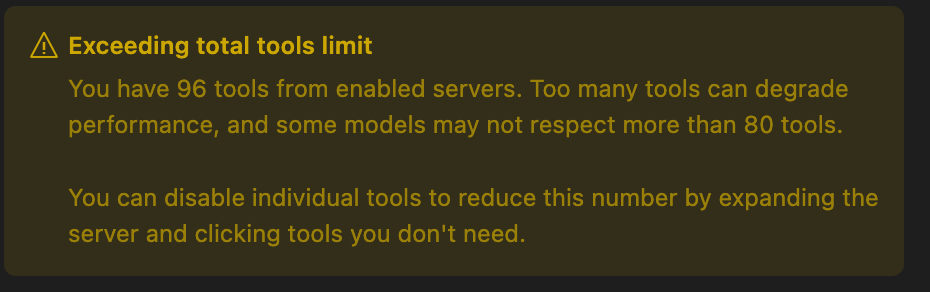
Go over that and you'll see this warning. It's not just Cursor being picky - AI models genuinely struggle when you throw 200 tools at them. They get confused about which one to use.
What to do about it:
Turn off tools you don't need. Each MCP server in settings can be expanded, and you can toggle individual tools on/off.
Use smaller, focused bundles instead of one giant server. At MCPBundles we built it this way on purpose - a "Sales" bundle with 15 HubSpot tools, a "Content" bundle with analytics and SEO. Each stays well under the limit.
Remove servers you're not using. If you added something three weeks ago and haven't touched it, just delete it.
Or use a different approach entirely: Our Hub uses programmatic tool calling - AI discovers tools on-demand and writes code to orchestrate them. You get access to 400+ tools without the overload problem because AI only loads what it needs for each task.
Cursor vs Claude Desktop
Both support MCP. Here's how they compare:
| Cursor | Claude Desktop | |
|---|---|---|
| One-click install | Yes | No (JSON only) |
| OAuth flows | Built-in | Manual tokens |
| Tool limit | ~80 | ~128 |
| Per-project config | Yes | No (global) |
Cursor is more polished. Claude Desktop is simpler but you're editing JSON files by hand.
When Things Break
"MCP server failed to connect"
Check the URL. If it's a local server, make sure it's actually running. Firewalls can also cause issues.
Tools not showing up
Is the server enabled? (Look for the green dot.) Did you hit the tool limit? Sometimes a restart helps if you just added the server.
OAuth keeps failing
Try clearing the auth cache: Settings → MCP → Clear Credentials. Also try running the OAuth flow in an incognito window - sometimes browser extensions interfere.
Getting Started
Want to try it right now? Click this link to install the MCPBundles Hub server in Cursor:
Install MCPBundles in Cursor →Or do it manually:
- Get Cursor if you don't have it: cursor.com
- Open Settings → MCP → Add Server
- Set type to
streamableHttpand URL tohttps://mcp.mcpbundles.com/hub/ - Connect your accounts via OAuth
- Start chatting with 400+ tools
That's really all there is to it.
What We Actually Use
Every day:
- PostgreSQL - querying our database from chat
- GitHub - managing repos and PRs
- HubSpot - CRM stuff without leaving the editor
- Ahrefs - SEO research while writing
- PostHog - checking analytics
Don't add 50 tools because they might be useful someday. Add the 10 you'll use this week. You can always add more later.
Running into issues with Cursor MCP? Let us know - we actually read the feedback.